Build a team of AI agents. No code needed.
One AI chat can only do so much. In LoomWatch you give each AI helper one job and let them pass the work along, like a small team: one finds the facts, the next writes, another checks. You set it up by clicking, and read it back in one plain sentence.
What an agent is
An agent is an AI helper with one job. In LoomWatch each one has:
- Instructions: its job, written in plain words, such as "Find three trustworthy sources and sum up what they agree on."
- A model it thinks with, such as Claude, GPT or Gemini, and how hard it should think.
- Skills: instructions it opens when the work calls for them, to do one kind of task well.
- Tools: services you connect for it, such as Todoist or Kiwi.com. It asks you before each action it takes there.
- What it may do without asking: search the web, edit files in its own folder or run commands, if you allow it. For anything else it asks you first.
Each agent also gets a face, a little velvet figure in one of six builds and a colour, so you can tell who is who at a glance.
1. Build an agent, and try it on its own
- Open My agents in the dock on the left (on Home, Build an agent before you have one) and start from a job, such as Researcher, Writer or Analyst. Others each make one kind of file: slides, a Word document or PDF, a spreadsheet, charts, a dashboard or a video. Each comes with working instructions, on the model its kind of work suits. Or start from Blank and write your own.
- Give it a name, and change its instructions, its model and how hard it thinks to fit your work. Give it the skills it needs. For one LoomWatch doesn't have yet, click Find skills in the marketplace in its Skills row.
- To let it use a service, such as Todoist or Kiwi.com, connect it in its Tools it can use row.
- Pick it a face.
- Open its Chat tab and give it a real request. It runs on its model, paid by your ChatGPT plan, your Claude credit or your OpenRouter key, and asks you before anything you didn't allow.
- When it does the job well, click Save to My agents.
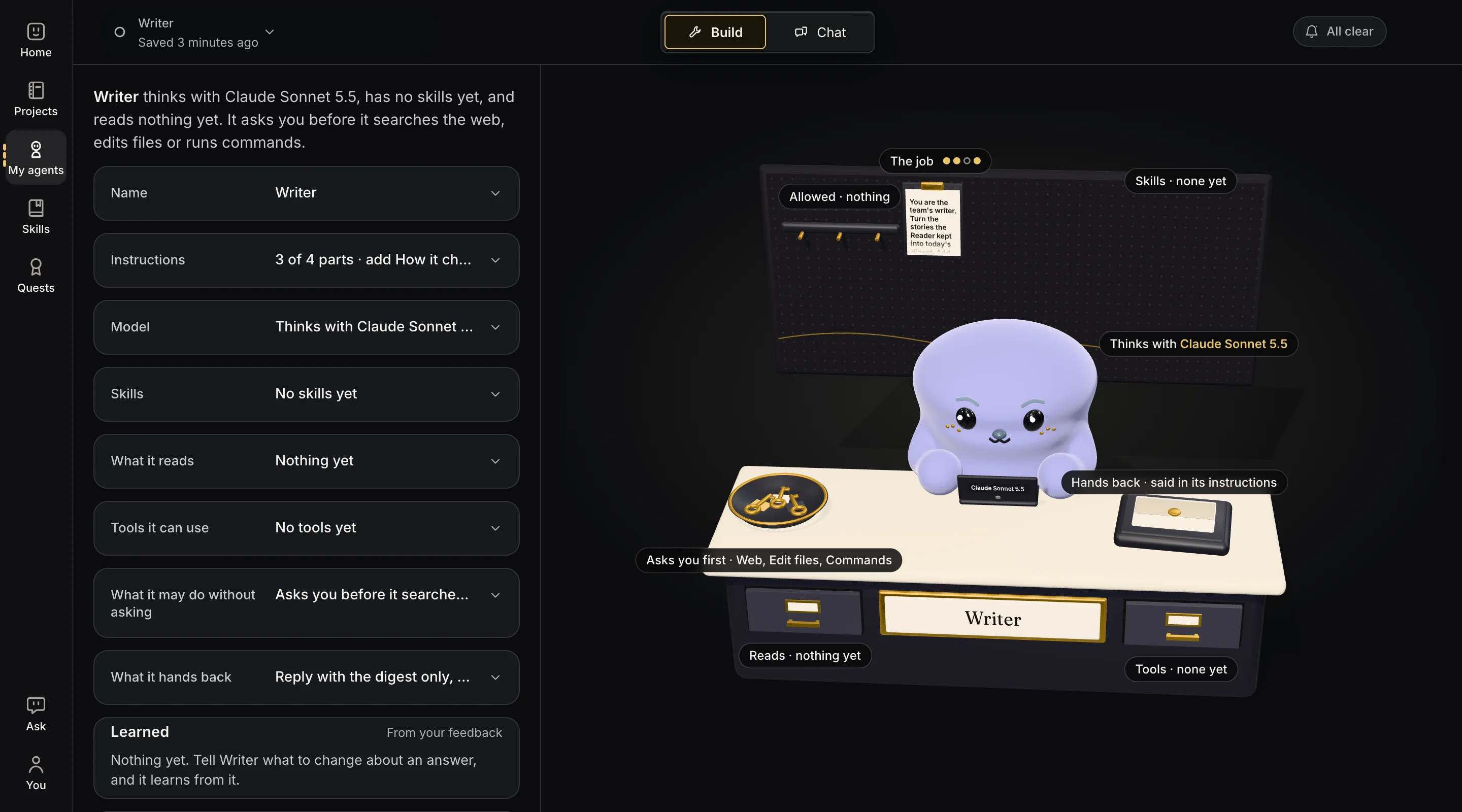
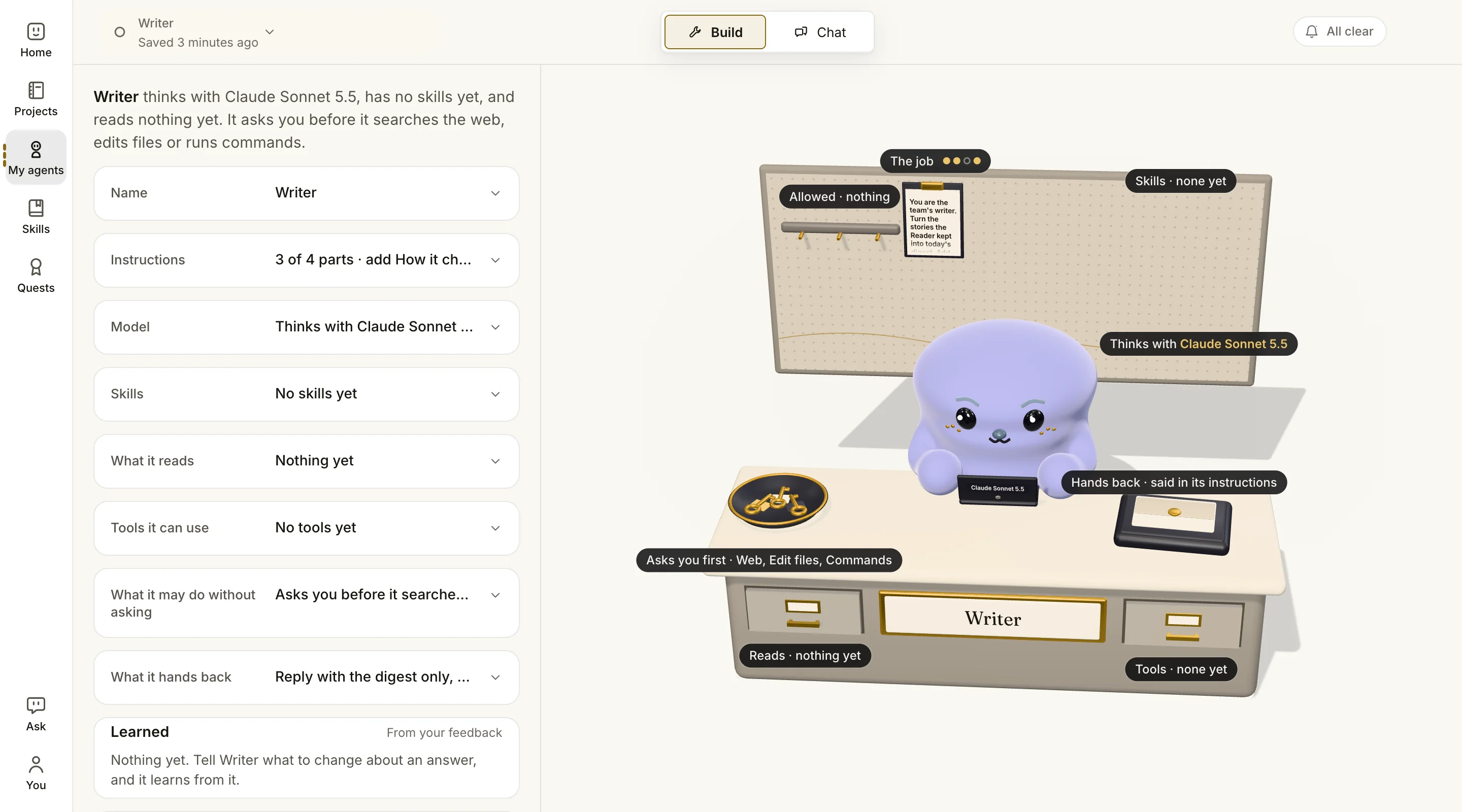
You build each agent once and use it in any team. It is the same agent in every team it's in: change its job later and every team uses the change from its next run, and what it learns from your feedback goes with it.
2. Start a project and its team
Every team works in a project: a room on Home whose wall holds what every agent in it knows, its About, folders and notes. On Home, say what you are working on, add its folder if it has one, and click Set up project (New project once you have one). Ask sets up the project and its first team for you to check: nothing runs until you start it. Ask needs a way to pay for its model connected.
To add a team yourself, open the project's room, click New team, give it a name and choose the agents it starts with. A team always starts with at least one:
- My agents: tick the agents you built. Each joins as you saved it, and you connect them in the next step. It is marked Recommended once you have one. With none yet, it is greyed out, with a Build your first agent link.
- One assistant: a single agent does the whole job. The best place to begin before you have built an agent.
- Researcher and writer: one agent gathers the facts, a second writes the result.
- Research, write and check: a third agent, on another company's model, checks the finished piece.
- Research, your approval, then writing: the team stops so you can approve the research first.
- Research team: a lead splits your question, researchers look into each part at the same time, and a writer turns what they found into a report that names its sources.
With My agents chosen, Create team stays off until at least one is ticked. Either way the team is saved straight away and opens ready to run. A ready-made team puts each agent on a model that suits its job.
A ready-made team's agents join My agents too, so you can use any of them in other teams. One whose name you already use gets the team's name after it, such as Writer · Blog writer.
3. Connect who hands work to whom
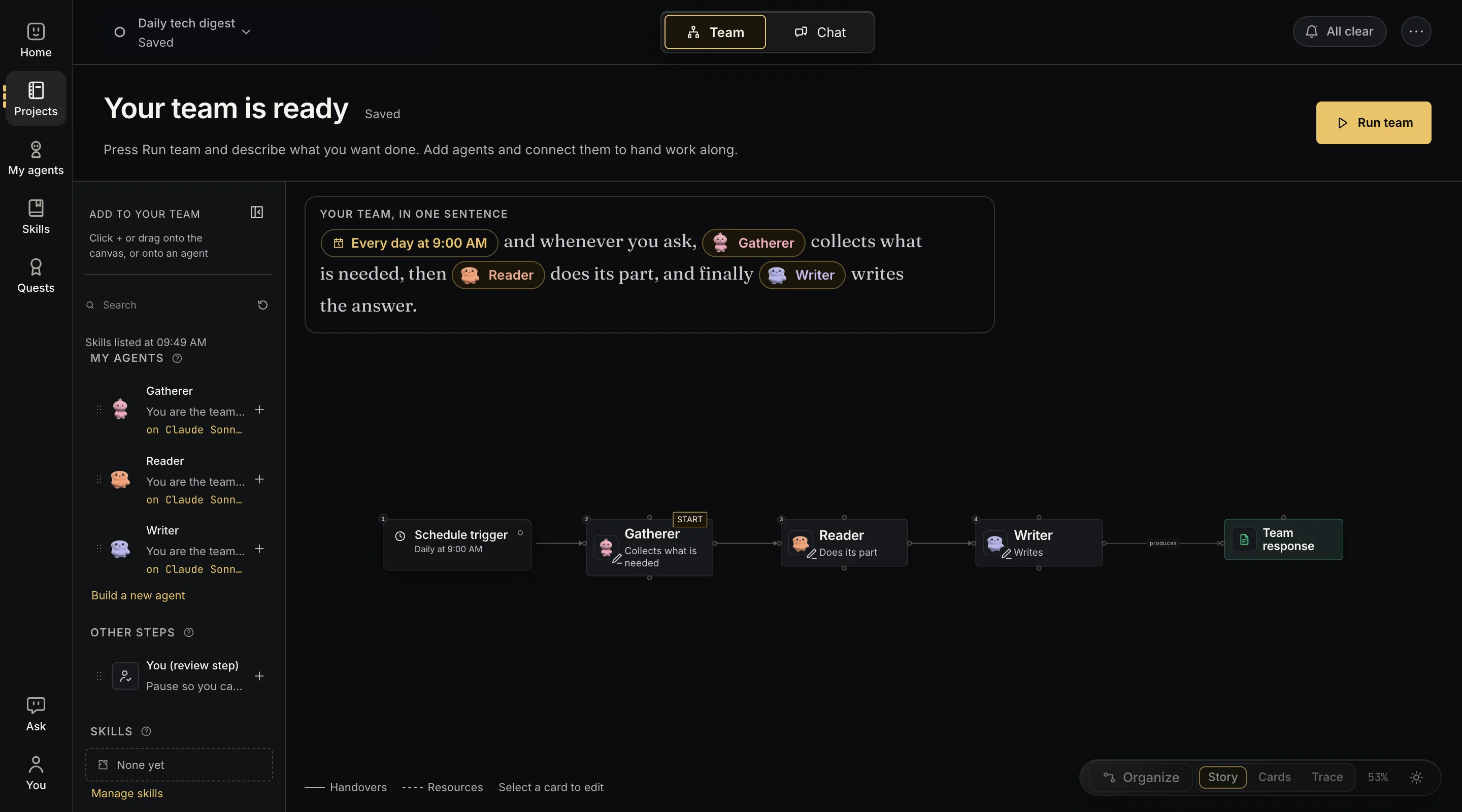
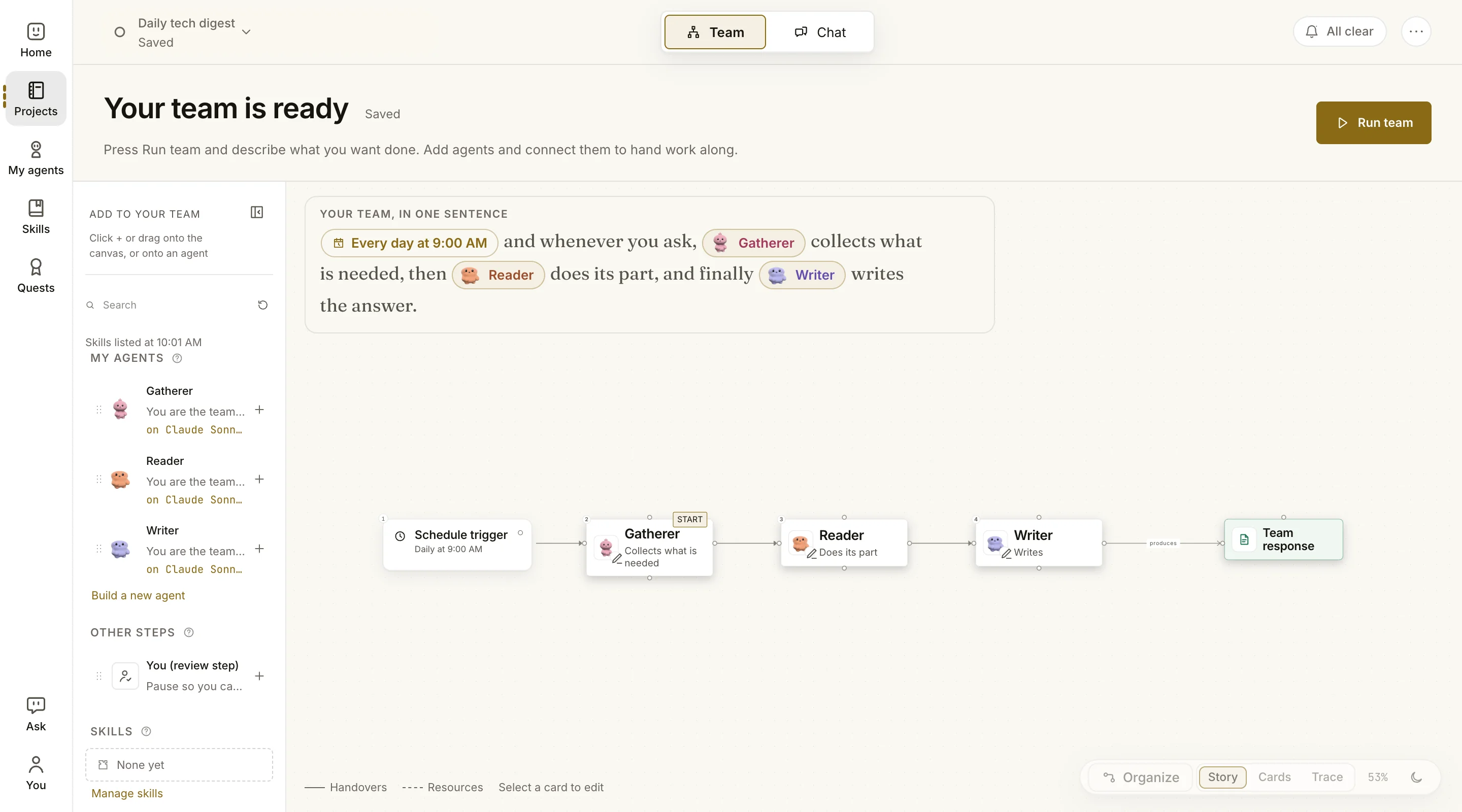
Open the team's Team tab. Add more agents from My agents in the panel on the left. To make a new one, click Build a new agent: you build and try it on its own first, starting from a job such as Researcher or Writer, then add it to the team. Drag from the dot on one card's right edge to the next card, so they work in that order. Under Other steps, add You (review step) wherever you want to check the work before it goes on.
LoomWatch reads your team back to you as one plain sentence, such as "Every day at 9:00 AM and whenever you ask, Gatherer collects what is needed, then Reader does its part, and finally Writer writes the answer." If the sentence sounds right, so is the plan.
4. Give the team work
Open the Chat tab, write @team and the job in plain words, and press Enter. For example: @team Prepare today's AI and tech news digest, and link every claim.
Each agent starts when the one before it hands over, and what they tell each other shows in the chat as they say it. Beside each face, its status is in words, such as "Writing its reply" or "Waiting for you". Write @ and one agent's name to ask just that agent. A message with no @ is a note the team reads next time.
To show the team something, paste a screenshot or drag files onto the chat, then say what to do with them. Drag a folder there and the team can read it from then on.
Teams people build
| Team | The steps | Good for |
|---|---|---|
| Morning briefing | Every day at 10:00 → Collector → Editor → Writer → Notion | A news digest waiting when you start work |
| Research team | Lead → Researchers, at the same time → Writer | A report on a big question, with a source for every claim |
| Research and review | Researcher → Reviewer | Answers whose sources a second agent has checked |
| Approve before writing | Researcher → You → Writer | Anything where a wrong first step is costly |
| From numbers to slides | Analyst → Designer | A deck or page built from real data |
Or just describe the team you want
Click Ask at the top of any screen and say what you want in a sentence, such as "Every weekday at 8, brief me on AI news." Ask sets the team up for you to look over. Nothing is saved until you click Apply, and Undo takes it back. Ask runs on a model you've connected too, like a run.