Check AI work before the next agent uses it.
When AI agents pass work along, one weak step quietly shapes everything after it. LoomWatch puts you in the line: the team stops, shows you what it has so far, and waits until you decide.
Add a review stop
On a team's Team tab, add You (review step) between two agents and connect it like any other step. In its What to check box, write what you want to look at, such as "Are the sources real, and is anything missing?" Add as many stops as you like.
Or start from the ready-made team Research, your approval, then writing, which already has one. A stop works on a schedule too: a team that runs every morning still waits for you.
When the team stops for you
The handover waits in the team's chat, with two buttons under it. The bell at the top of LoomWatch tells you, on any screen, when something needs you.
- Approve passes the work on. Type a note first and the button says Approve with your note: your note goes on with the work, as your direction. Click it: Enter sends the work back instead.
- Send back: write what should change in the box at the bottom, then click Send back or press Enter. The agent revises it and asks you again.
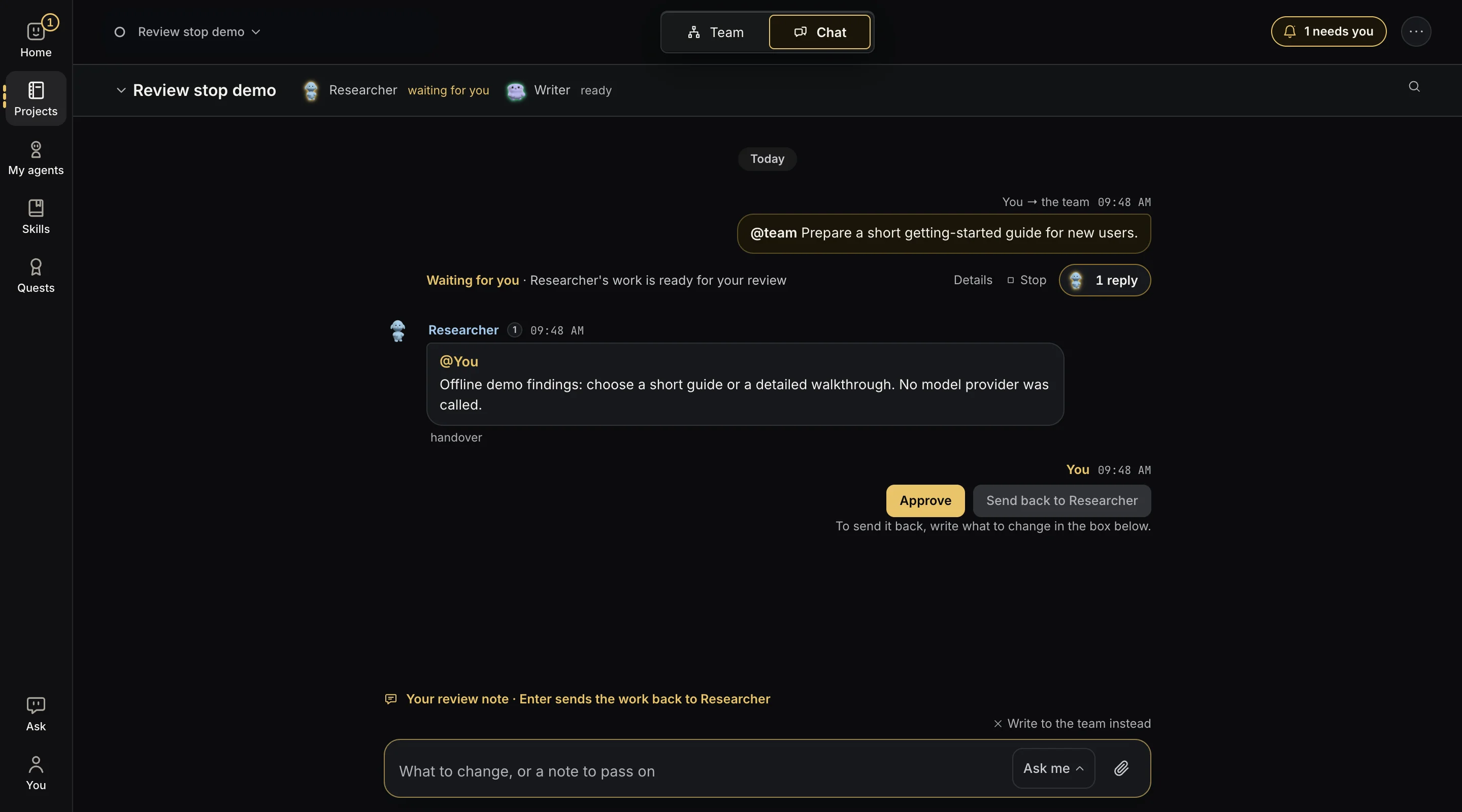
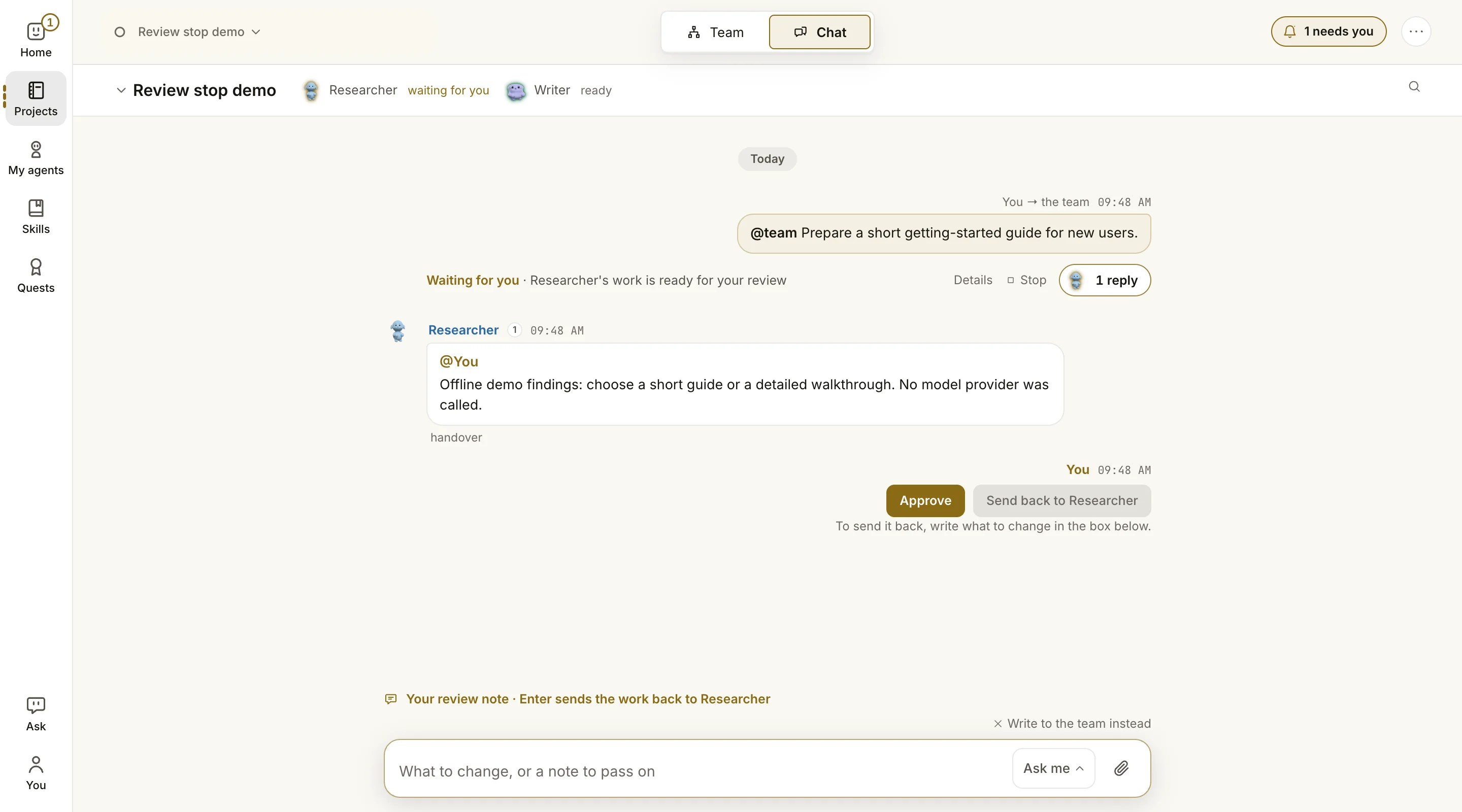
Nothing moves on until you decide. LoomWatch's own helper, Ask, can draft a note for you, but only you click Approve or Send back.
Agents ask before they act
Each agent has three switches under Allowed without asking: Search the web, Edit files (only in its own folder) and Run commands. They start off, except web search for researchers.
For anything it isn't allowed, the agent stops and asks in the chat, such as "Asks to use the web". You answer right below it: Allow, Allow for this run, Allow for the whole team, Always allow or Deny. When it asks to run a command, you can change the command before it runs, or answer in its place so nothing runs at all.
A tool you connected, such as Todoist or Linear, works in your own account there, so the agent asks before each action it takes, even one that only reads. The question names the tool, the action and what it would send. Always allow this lets that one action through for that agent from then on, and its other actions still ask. Its Tools it can use row lists what it always may do, with a × to take each back.
If nobody answers within 10 minutes, the request is declined. A scheduled run waits 12 hours for you, then declines it. The run's receipt says what an agent couldn't do, so you can allow it next time.
Fewer questions, with Auto
When you'd rather the team got on without you, click Ask me beside the chat's send button and choose Auto. It takes effect at once, even for work already waiting on you. On a Mac, the agents' commands then run without asking, but can't open other apps or reach your passwords and keys, stay off the internet unless the agent may search the web, and change files only in the folder each agent works in. In that folder, agents may change and delete files without asking, so if you chose one of your own folders for an agent, keep that team on Ask me if you want to check each change. Their commands can still read your other files. A command that publishes, needs administrator rights or touches passwords and keys still asks every time, and so does using the web for an agent with Search the web off, every action in a tool you connected from the internet, and every change in the Apple apps you gave an agent. Looking in those apps goes ahead. LoomWatch decides this on your computer, from the command or the app's action itself.
Agents always read their teammates' work in the team without asking, in either mode.
On Windows, commands an agent runs are not walled off from the rest of your computer: an agent you let run commands can change any of your files. Leave Run commands off unless you need it. There, Auto runs only the commands that read without asking.
See what really happened
Every message, every tool an agent used, every file it touched and every handover is recorded on your computer. Under a piece of work in the chat, press its replies (3 replies), then the Details tab, to see each step. Drag the timeline back to replay what happened, and when.
Each run ends with a receipt: how it ended, what it used and what it cost. A skill counts as read only when the agent really read it. Nothing is guessed from a title.
Redo just one step
To change one agent's work, write @ and its name in the chat, with what should change. Under its new version, Continue with the team runs the steps after it, so you don't start over.